
How to schedule LinkedIn posts: profile, company page and video
LinkedIn is the network where a well-written post, published at the right time, can bring business clients faster than any other platform. Scheduling helps you post consistently without watching the clock. Here is how to schedule on your personal profile and your company page, with and without an external tool.
How to schedule a post with LinkedIn's own scheduler
- 1
Start a new post
On linkedin.com or in the app, click “Start a post” from your profile or from a company page you manage.
- 2
Write the copy and add media
Write the text, add the image, document or video and check the mobile preview.
- 3
Choose scheduling
Click the clock icon next to the Post button, pick the date and time and confirm.
- 4
Check your scheduled posts
Scheduled posts appear in their own list, where you can edit, reschedule or delete them before they go out.
Personal profile or company page?
On LinkedIn, posts from personal profiles usually reach more people than posts from company pages, because the network favours conversations between people. The company page still matters for credibility, recruitment and ads, but the main voice of a small business is often the founder or a key team member.
A simple strategy that works: the main posts go on the founder's profile, while the company page reshares them or publishes its own, more formal versions. Both can be scheduled.
The limits of the built-in scheduler
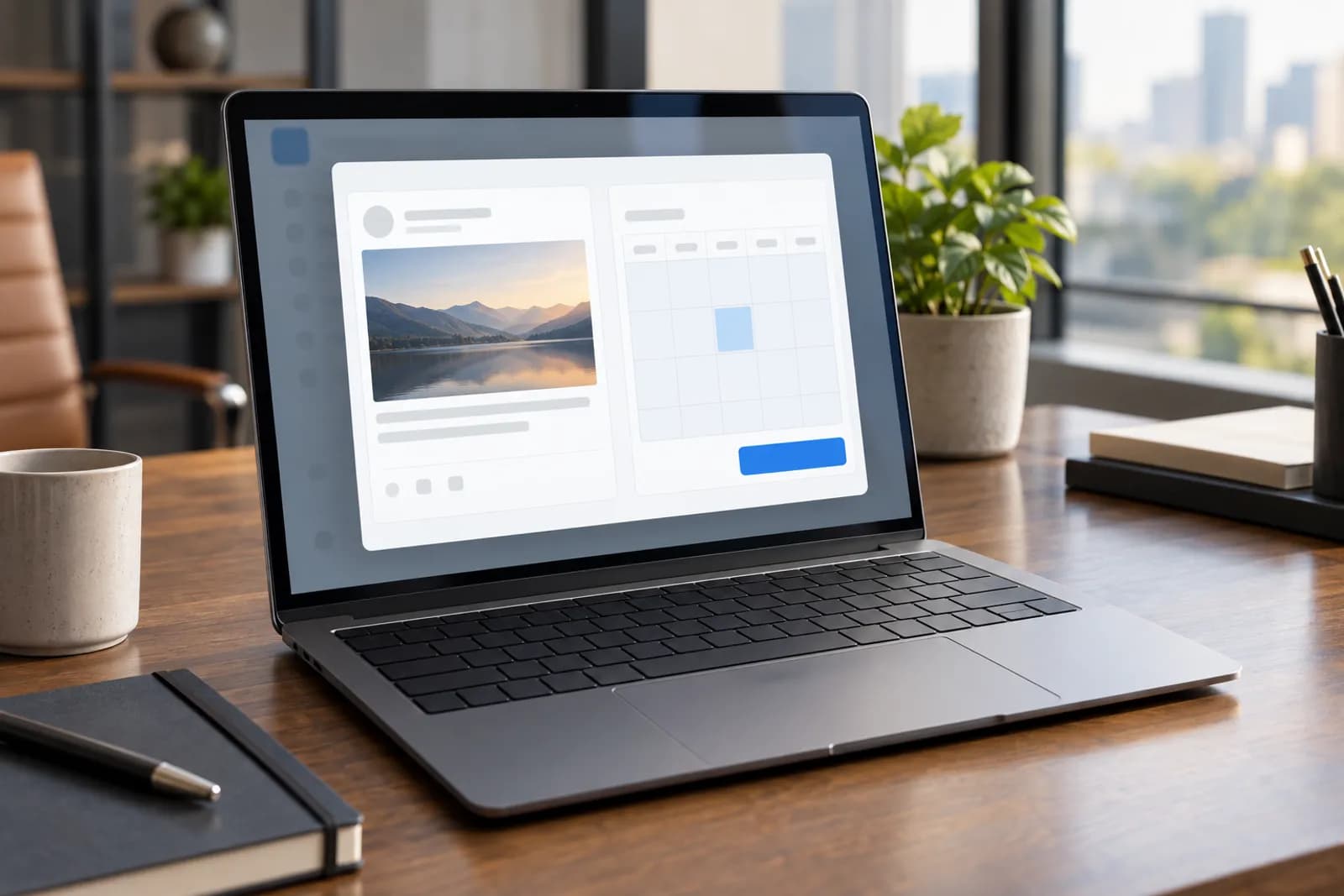
LinkedIn's built-in scheduler is free and enough if you only post on LinkedIn, on one profile or one page. The limits show when you work with several accounts or when the same content must also go to other networks: each post is scheduled separately, and the calendar does not show what you have planned on Instagram, TikTok or Facebook.
The available options can vary by account type and region, so check your own interface. If you do not see the scheduling icon, update the app or use the desktop version.
Scheduling from an external tool
A scheduling tool makes sense when you post on several networks or manage several pages. What matters is that it connects through LinkedIn's official authorisation, not your password, and that it shows clearly what was published.
In PostingClips you connect LinkedIn through LinkedIn's own login, pick the clip or media and the time, and the caption is written specifically for LinkedIn, separately from the one for TikTok or Instagram. The same clip can go to every network, with copy suited to each audience, and it appears in the Calendar next to your other posts.
When to post on LinkedIn
LinkedIn is a weekday network. As a starting point, try Tuesday, Wednesday and Thursday, in the morning between 08:00 and 10:00 and at lunchtime between 12:00 and 13:00, in your audience's time zone. Weekends usually see less activity for professional content.
The first hour after publishing matters: quick replies to comments extend the post's life. So schedule for times when you can be around for at least 30 minutes after it goes live.
- Two or three posts a week, not daily, if you cannot keep the quality
- Schedule only at times when you can reply to comments
- Test one new slot at a time, for two or three weeks
Formats that work on LinkedIn
Well-written text remains the core format: an opening line that stops the scroll, short paragraphs, one clear idea and a question at the end. Document carousels (PDF) work well for step-by-step guides. Short video keeps growing, and vertical or square clips of 30–90 seconds with subtitles suit mobile scrolling habits.
For video, say in the text why the clip is worth watching. On LinkedIn people read before they press play. Add subtitles, because many people watch without sound at work.
| Format | When to use it | Tip |
|---|---|---|
| Plain text | Opinions, lessons, stories | Opening line under 15 words |
| Text + image | Announcements, results | A clear image without much text |
| Document (PDF) | Steps, lists, guides | 6–10 pages, one idea per page |
| Short video | Demos, behind the scenes | Subtitles, 30–90 s |
Common mistakes
Scheduling makes posting easy, but it does not fix weak content or the wrong rhythm. These are the most frequent mistakes.
- Copy pasted from Instagram with lots of hashtags: on LinkedIn three to five relevant hashtags are enough
- An external link in every post: alternate link posts with posts that keep the conversation on LinkedIn
- Posts scheduled at times when you cannot reply
- Only company announcements: mix in lessons, opinions and concrete examples
- No review: check monthly which posts brought messages or profile visits
A simple weekly workflow
On Monday, write three posts: a lesson from your work, an example from a client (with their consent) and a post with a short video. Schedule them for Tuesday, Wednesday and Thursday morning. Set aside 15 minutes after each one goes live for comments. On Friday, note what worked and which questions came up; they become next week's topics.
If you already have clips for TikTok or Reels, adapt them for LinkedIn with a longer explanatory caption and schedule them in the same calendar so nothing gets lost.